MY mENU


Monday, 17 December 2012

What is jQuery?


jQuery is a lightweight, "write less, do more", JavaScript library.The purpose of jQuery is to make it much easier to use JavaScript on your website. jQuery takes a lot of common tasks that requires many lines of JavaScript code to accomplish, and wraps it into methods that you can call with a single line of code. jQuery also simplifies a lot of the complicated things from JavaScript, like AJAX calls and DOM manipulation. The jQuery library contains the following features:

  • HTML/DOM manipulation
  • CSS manipulation
  • HTML event methods
  • Effects and animations
  • AJAX
  • Utilities

Friday, 7 December 2012

POPUP Boxes in JavaScript

A popup box that displays a message, along with an "OK" button. Depending on the popup box, it might also have a "Cancel" button, and you might also be prompted to enter some text. These are all built into JavaScript and are what I call "JavaScript popup boxes". They can also referred to as "dialog boxes", "JavaScript dialog" , "popup dialog" etc.

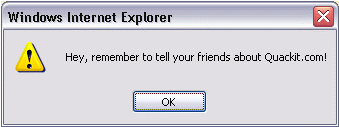
ALERT BOX:

  • The syntax for an alert box is: alert("yourtext");
  • The user will need to click "OK" to proceed. 
  • Typical use is when you want to make sure information comes through to the user.
  • Examples could be warnings of any kind.(Typical examples are "Adult Content", or technical matters like "This site requires Shockwave Flash plug-in").


Screenshot of a JavaScript alert box


CONFIRM BOX:
  • The syntax for a confirm box is: confirm("yourtext");
  • The user needs to click either "OK" or "Cancel" to proceed.
  • Typical use is when you want the user to verify or accept something.
  • Examples could be age verification like "Confirm that you are at least 57 years old" or technical matters like "Do you have a plug-in for Shockwave Flash?"

- If the user clicks "OK", the box returns the value true.
- If the user clicks "Cancel", the box returns the value false.

Screenshot of a JavaScript confirm box


PROMPT BOX:

  • The prompt box syntax is: prompt("yourtext","defaultvalue");
  • The user must click either "OK" or "Cancel" to proceed after entering the text.
  • Typical use is when the user should input a value before entering the page.
  • Examples could be entering user's name to be stored in a cookie or entering a password or code of some kind.

- If the user clicks "OK" the prompt box returns the entry.
- If the user clicks "Cancel" the prompt box returns null.
Screenshot of a JavaScript prompt box

Since you usually want to use the input from the prompt box for some purpose it is normal to store the input in a variable, as shown in this example:

Syntax Of JavaScript


Explanation of code
  • The tag Script tell the browser to expect a script in between them. You specify the language using the type attribute. The most popular scripting language on the web is JavaScript.
  • The bits that look like HTML comments tags are just that - HTML comment tags. These are optional but recommended. They tell browsers that don't support JavaScript (or with JavaScript disabled) to ignore the code in between. This prevents the code from being written out to your website users.
  • The part that writes the actual text is only 1 line (document.write("JavaScript is not Java");). This is how you write text to a web page in JavaScript. This is an example of using a JavaScript function (also known as method).

Where to put your scripts?

You can place your scripts in any of the following locations: Between the HTML document's head tags. Within the HTML document's body (i.e. between the body tags). In an external file (and link to it from your HTML document).

The location choice of head or body is very simple. If you want to have a script run on some event, such as when a user clicks somewhere, then you will place that script in the head. If you want the script to run when the page loads, like our "Hello World!" example in the previous lesson, then you will want to place the script within the body tag.